Running a birthday report
You may like to run a birthday report for a variety of purposes including:
- Knowing when your employees birthdays are to arrange cake/ birthday messages.
- To compare their birthday with their position to ensure that they have the correct pay rate (especially for junior positions).
To export a list of employees with their birth date and/or month and/or age:
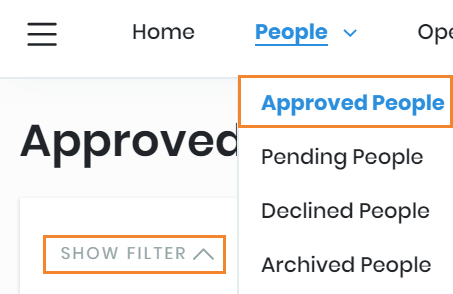
- In the quick menu, navigate to People > Approved People.
- Select Show Filter to run a search for specific employees if required, and click Apply Filter.
- Click Bulk Actions > Export All Filtered.
-
- Select the data you wish to export making sure to tick 'Date of Birth' (under 'Access' heading and/or 'Birth Month' (under the 'Other' heading) and/or 'Age' (under the 'Additional Info' heading) and 'Position' or 'Additional Position' (under the Work heading).
-
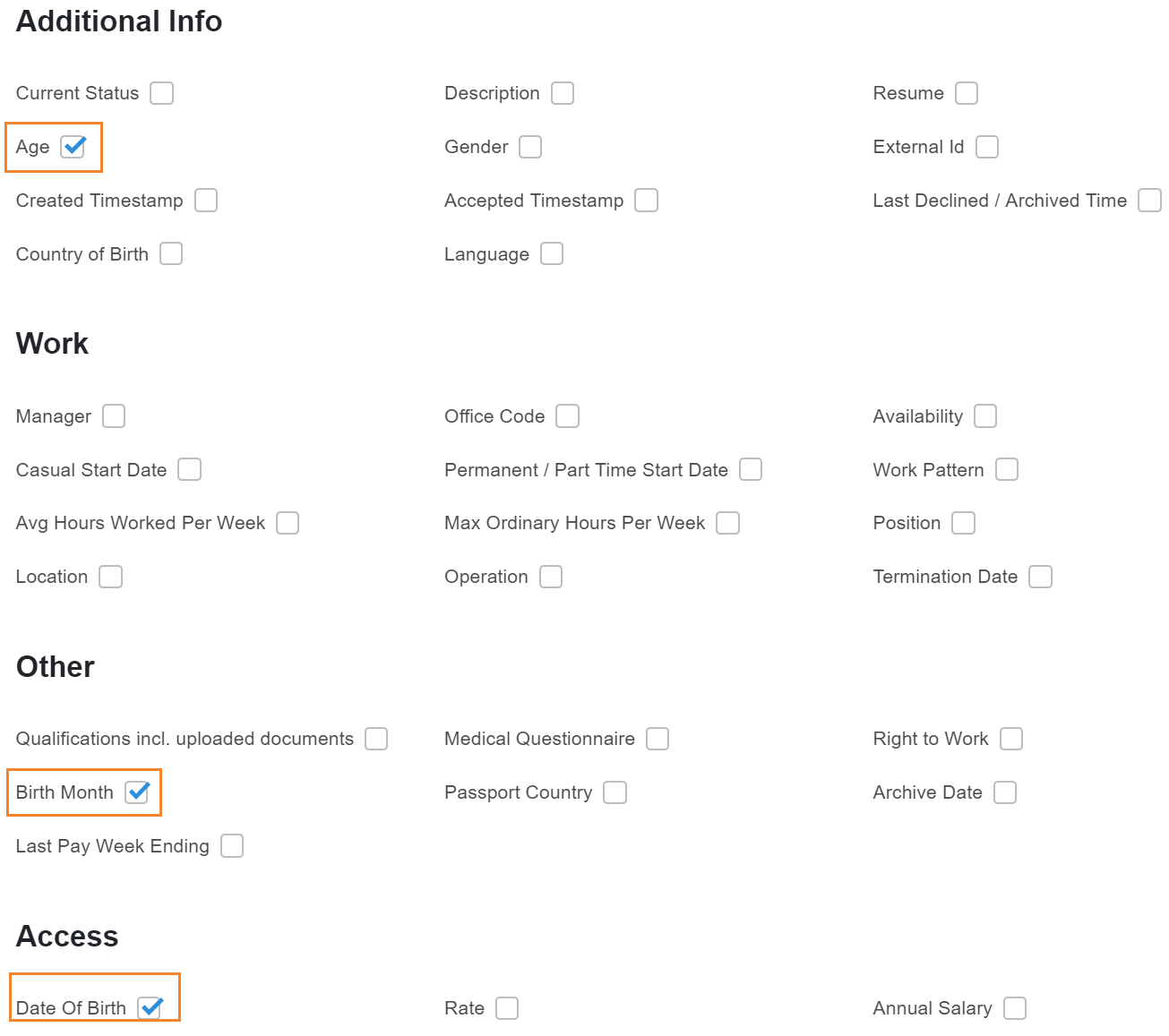
- Note: To bulk select options, click on the headings such as 'Additional Info' or 'Other'. This will select or deselect all the sub options, as a quick way to select multiple options.
-
- Click Export CSV button at the bottom. This will produce a .csv file with your chosen data.
Below is a sample CSV output as viewed in Excel.
Below is an example of the output:
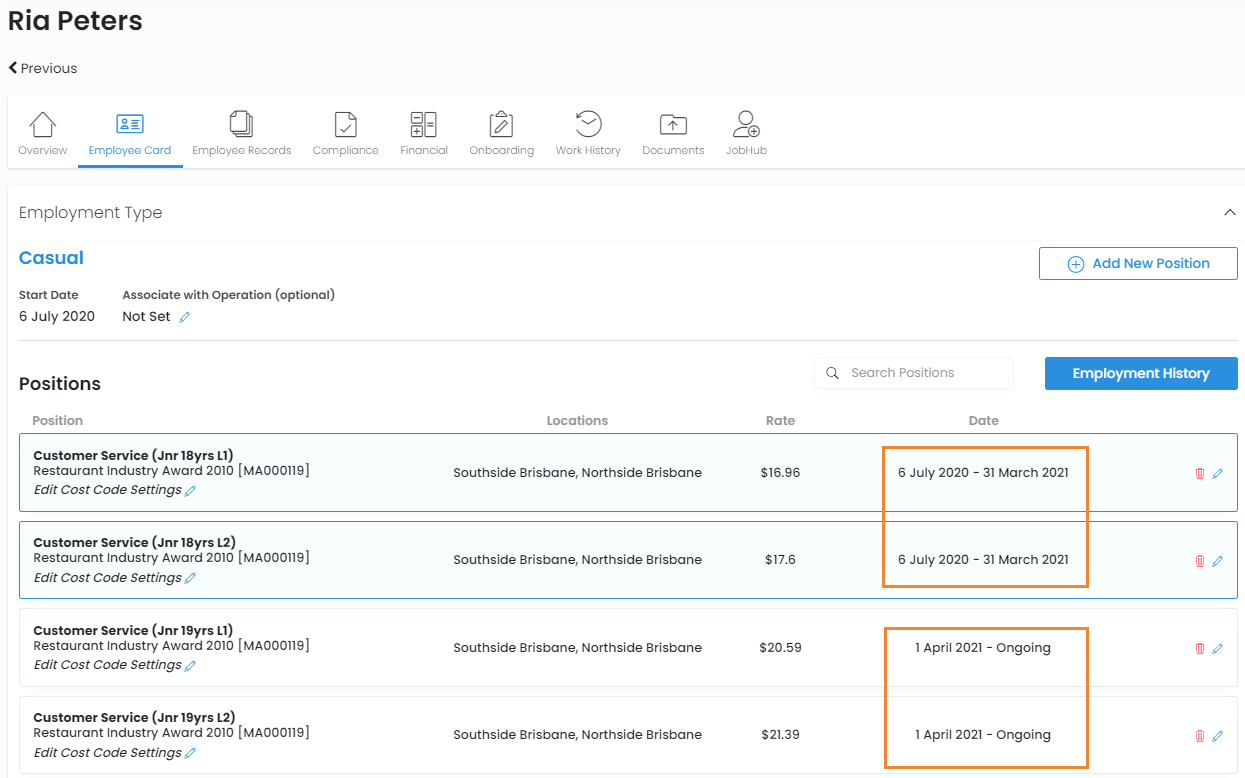
You can then compare the output to your employee's position/s located in Employee profile > Employee Card > Employment Type.
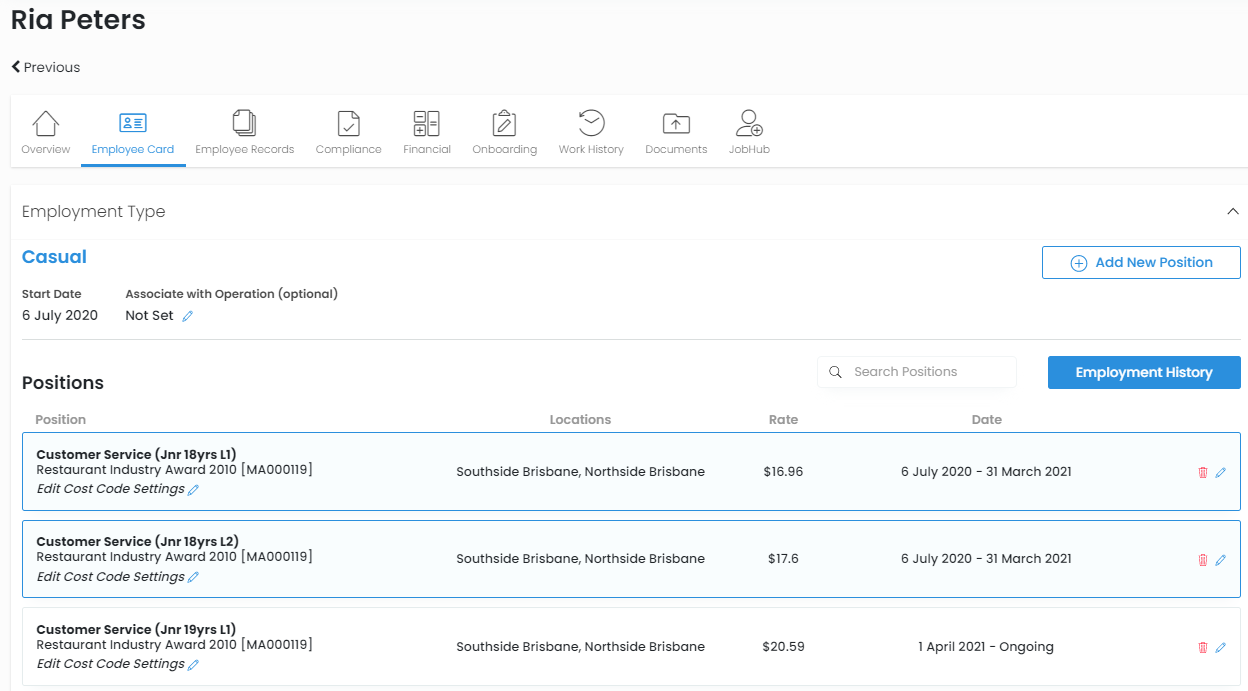
When managing your casual junior employees, best practice is to use the start and end date to indicate when your employee will be paid their next level rate e.g. on their birthday the next year.
Below is an example for Ria who is currently 18 years old who works both as a level 1 and sometimes as a level 2. As her birthday is on the 1st of April, we have set up her 19 year old rates already. This means that the correct rates will flow through once she turns 19.